Registration and login
On this page, you will find information about how to be registered in Mileage Book and how to log in to Mileage Book for the first time. Please note that the cars have keyless access and can therefore only be unlocked via the app. You are therefore required to install the app.
How to be registered
In the Service Portal under “Økonomi”, you can request access to use and book AAU’s cars. To use AAU’s cars, you must confirm that you agree to the rules for using the cars. The Finance Department assigns and approves the role in IdM based on your service request, after which you will be able to book the cars.
Installér Mileage Book Fleet
Find “Mileage Book Fleet” in App Store or Google Play.
- App Store: https://apps.apple.com/dk/app/mileage-book-fleet/id6443627572
- Google Play: https://play.google.com/store/apps/details?id=com.mileagebook.mileagebookfleet&hl=da
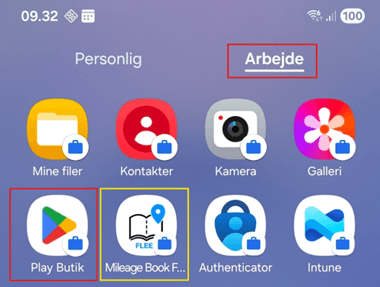
If you have an AAU Managed phone, download Mileage Book Fleet as follows:
You can find the app by going to the “Work” area.
- Open “Play Store”.
- Search for Mileage Book Fleet.
- Install the app.
- The app will then be shown as indicated by the yellow marking below.
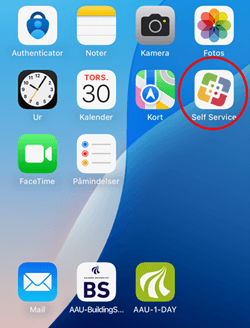
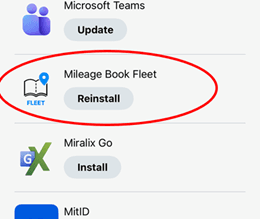
You can find the app in the folder called “Self Service”.
- Open Self Service.
- Search for Mileage Book Fleet.
- Install the app.
Log in to MileageBook for the first time.
Go to the website: https://www.mileagebook.com/en/
Click “Log in” in the upper-right corner.
Enter your email address in the “Email” field.
As soon as you have entered your email address, you will be logged in, as Mileage Book is configured to use our SSO login.
You are now logged in.
Login prerequisites:
- You must log in using Single Sign-On (SSO).
- You must not enter your password at any point.
- You must have the Authenticator app installed and linked to your AAU Microsoft account.
Step 1: Download and open the app
- Go to the App Store and download the “Mileage Book Fleet” app.
- Open the app.
Step 2: Start the login process
- Enter your AAU ID in the Email field (AAU-ID@domain.aau.dk). Click Login.
- A pop-up appears with the text: “MileageBookFleetApp” wants to use “microsoftonline.com” to sign in. Click Continue.
Step 3: Sign in with your Microsoft account
- A new window opens. Here, sign in with your Microsoft account:
- Enter your AAU ID (AAU-ID@domain.aau.dk). Click Next.
Step 4: Confirm your identity
- You will be asked to approve the sign-in:
- Open your Authenticator app and approve the request. Enter the number if prompted.
- In the Mileage Book Fleet app, a pop-up appears with the text “Are you trying to sign in to Mileage Book Fleet App?” Click Continue.
Step 5: Grant the necessary permissions
- Open the Mileage Book Fleet app.
- The app requests access to Bluetooth. Click Allow.
- The app needs your location if you are going to use the keyless function — click the bar “Do you want to see your location on the map?”. Select Allow While Using App.
You are now logged in and ready to use the Mileage Book Fleet app. The steps above only need to be completed the first time you log in.
Login prerequisites:
- You must log in using Single Sign-On (SSO).
- You must not enter your password at any point.
- You must have the Authenticator app installed and linked to your AAU Microsoft account.
- The app uses your browser for login via SSO and AAU’s IT security. Chrome works best, so make sure it is installed and set as your default browser. If you wish, you can change your default browser again after login.
How to do this:
- Go to Settings → Apps → Chrome.
- Select “Set as default browser”.
Step 1: Download and open the app
- Go to Play Store and download the “Mileage Book Fleet” app.
- Open the app.
Step 2: Start the login process
- Enter your AAU ID in the Email field (AAU-ID@domain.aau.dk). Click Login.
Step 3: Sign in with your Microsoft account
- Your default browser opens. Here, sign in with your Microsoft account:
- Enter your AAU ID (AAU-ID@domain.aau.dk). Click Next.
Step 4: Confirm your identity
- You will be asked to approve the sign-in:
- Open your Authenticator app and approve the request. Enter the number if prompted.
- In the Mileage Book Fleet app, a pop-up appears with the text “Are you trying to sign in to Mileage Book Fleet App?” Click Continue.
Step 5: Grant the necessary permissions
- Open the Mileage Book Fleet app.
- The app requests access to Bluetooth. Click Allow.
- The app needs your location if you are going to use the keyless function — click the bar “Do you want to see your location on the map?”. Select Allow While Using App.
You are now logged in and ready to use the Mileage Book Fleet app. The steps above only need to be completed the first time you log in.